
Slinky: A self-hosted start page

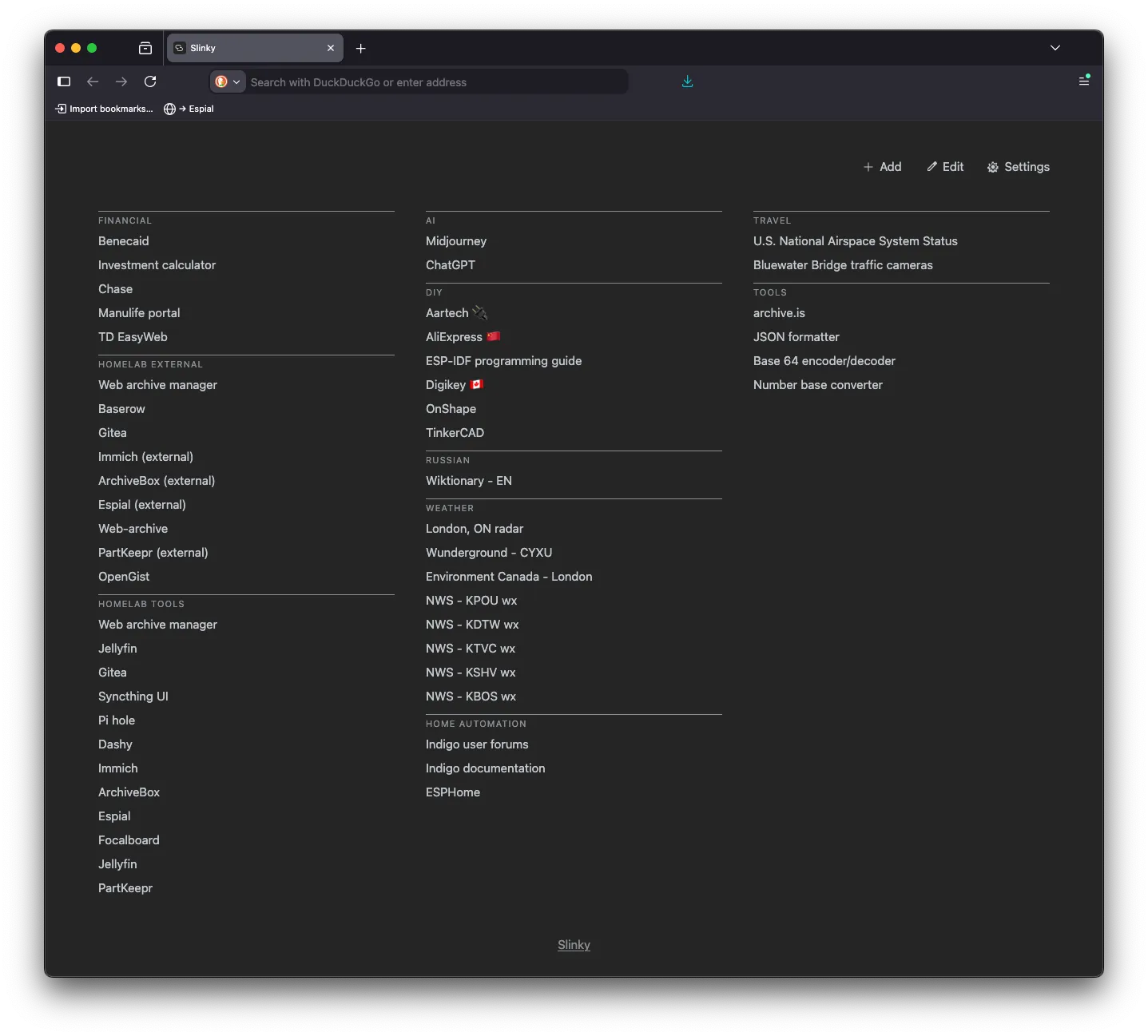
One of the browser conveniences that I appreciate is ready access to commonly used links, presented in a neat and categorized way. Every time I create a new tab, I just want to see those links. There are of course many browser extensions that present a page when the user opens a new tab. Mozilla has its own default ad-ridden page on Firefox. For my part, I don’t want news, weather, “trending stories,” or ads. I just want my curated links. That’s why I created Slinky.
It’s a self-hosted start page. For several years, I used the extension “A Fine Start” to present new-tab and new-window links. Its aesthetics and behaviour were close to ideal. But in a world where everything is on a subscription model, I could not justify another monthly fee to support syncing my bookmarks. I also needed something that would work on iOS. For a while, I had a complicated system to keep my A Fine Start bookmarks in sync using nightly JSON export/import. It was cumbersome to keep everything aligned between machines.
So that is how Slinky got started.
Installation
The code lives at Slinky. Clone the repository and work from that tree. You will need Go 1.25+ to build; Debian 12’s golang-go package is too old. The supported install is a systemd service on Debian 12. Full commands, unit files, and environment variables are in the README. What follows is only a sketch.
git clone https://github.com/NSBum/slinky.git
cd slinky
On the Debian host, with Go 1.25+ installed:
make slinkyIf you would rather not install a current Go on the server, build a Linux amd64 binary elsewhere (make linux on macOS) and copy it into the clone. Then follow the README to install the binary, systemd unit, and /etc/slinky/slinky.env. Set SLINKY_ACCESS_PATH there — that string is the secret path component in the homepage URL. Enable the service, then open http://<host>:8080/<access-path>/. There is no login screen. Anything else, including /, returns 404.
A fresh install is empty. Add bookmarks in the browser, or paste an A Fine Start JSON export under Settings → Import bookmarks.
Usage
Use the URL with the secret path component as your homepage, not the site root. Settings shows the exact URL to copy.
- Firefox: Settings → Home → Homepage and new windows (and optionally new tabs) → Custom URLs.
- Safari: Settings → General → Homepage, and set new windows/tabs to Homepage.
- Chrome / Edge: you can set a custom home URL, but new tabs still use Chrome’s NTP unless you also use an extension.
For new tabs in Firefox I use the New Tab Override extension.
The access path is the protection: anyone who can guess the URL can view and edit. For a page of bookmarks, that is a reasonable trade for not logging in every time you open a tab.
Honestly, if this is all too much trouble, or if you don’t have experience with self-hosting, or if the security issues worry you, just use A Fine Start. It’s great.
If you run into trouble, see my contact page.