
Using Obsidian Linter plugin to update YAML modified date
When writing notes for my Obsidian vault, I like to keep track of when it was last modified. While I could certainly do that manually, it seems like something that would be easy to automate. It turns out to be a little difficult; and I’m not on the third iteration of this quest. Over the last few years, I’ve written twice in the blog about keeping the modification date (mdate:) in the YAML frontmatter of my Obsidian notes up to date. I no longer use either of those methods. Instead, I use the Linter plugin, which handles this within the Obsidian environment.
The earlier approaches
In November 2022, I described using fswatch to update note metadata. A shell script watched the vault for filesystem changes, read each changed note’s modification time with stat, and used sed to write that value into its YAML frontmatter. The script also had to filter out temporary files and unrelated events, and it needed to keep running in the background as a launchd user agent.
By May 2023, I was using a Hazel rule to trigger a similar shell script. In my discussion of file creation dates, I discussed a complication: rewriting a note with sed -i changed its filesystem creation date. The workaround used GetFileInfo to save the original creation date and SetFile to restore it after updating the YAML. Those utilities required the Xcode command line tools.
Both approaches put the responsibility for maintaining Obsidian metadata in tools outside Obsidian. There is now a much simpler way to handle this.
Using Linter
In Linter’s settings, open the YAML tab and find YAML Timestamp. Enable Date Modified. To keep using the field from my earlier examples, set Date Modified Key to mdate. The format YYYY-MM-DD HH:mm matches those examples as well. See the YAML timestamp documentation for the available options.
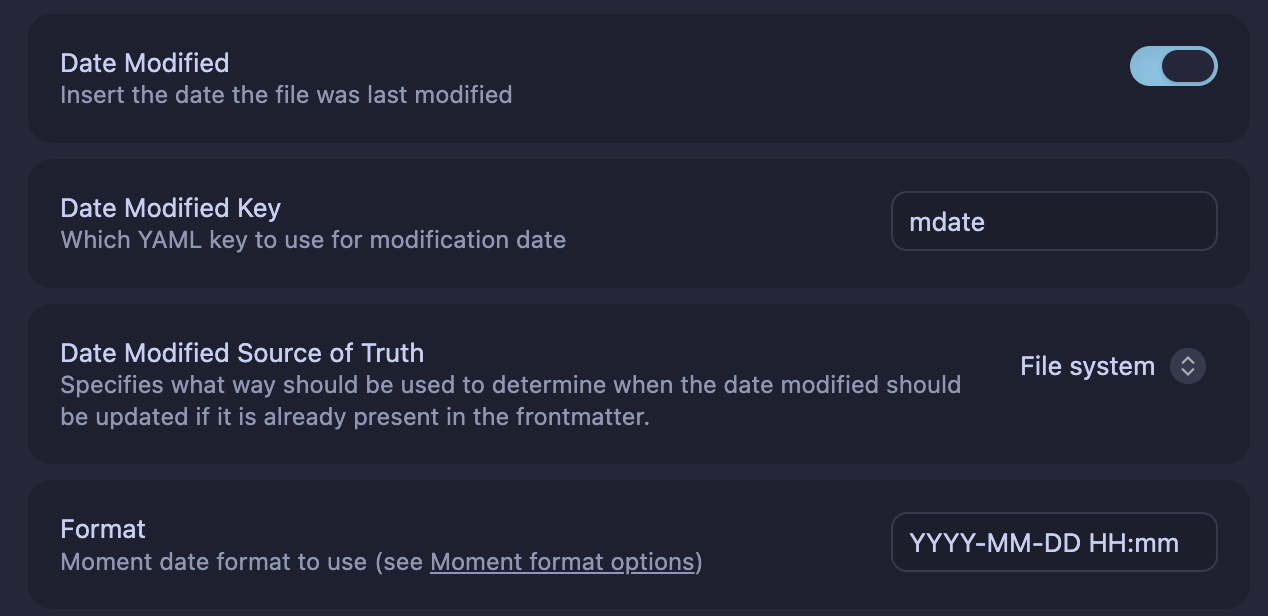
The timestamp rule needs to run for the value to update. You can run Linter manually, or enable Lint on save in its general settings to run it when you explicitly save a note. Linter also offers Update YAML Timestamp on File Contents Update for updating the timestamp after edits to the active note; select an interval rather than Never if you want that behavior. The instructions for running rules explain the available triggers.
For me, the main advantage is that the solution lives inside Obsidian. Aside from the Linter plugin itself, it requires no external resources: no filesystem watcher, Hazel rule, background shell script; and it doesn’t require you to install Xcode and the Xcode Command Line Utilities (which, of course, made one of my solutions macOS-only). Overall, it’s just a lot less to maintain; and with the right sync configuration, the plugins can match-up between machinges.
Usually simpler is better.
If you have questions or comments, please get in touch via my contact page.