
Containerized agentic ESP32 development using a test bench proxy
(N.B. This post assumes a very specific environment, specifically macOS. If you’re not on macOS, this may still be of interest as a general approach, but some of the mentioned software isn’t multi-platorm.)
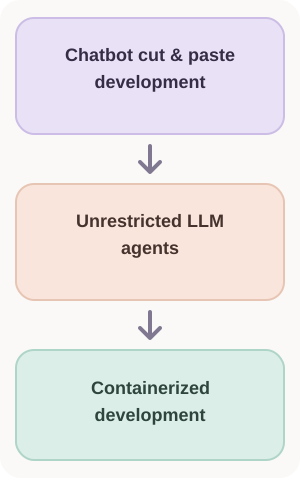
Like many hobbyist embedded developers, I’ve stepped cautiously into LLM-assisted development. First, it was just chatbot copy-and-paste cycles. It worked but it was cumbersome, time-consuming, and the model had no way of controlling tooling and monitoring feedback in real-time. The next step, a huge leap really, was to allow agents to work directly in the development environment. In this step, I would open a codex session in ~/esp and allow it to work there. It was perfectly capable of writing competent ESP-IDF code, flashing the device over USB, and monitoring the process. This would be the end of the migration except for a glaring security issue:
Do I really want the agent to have access to my entire computer?
The answer is probably not. The stories of autonomous security exploits and devastating data losses are beginning to pile up. Further, we don’t completely understand all of the privacy implications of these agents. This article is about how I solved the following:
- How to spin up lightweight Linux VMs on a macOS host without a desktop environment?
- Can ESP-IDF and
codexCLI be installed on a Linux VM? - Can we access the USB for device programming and monitoring? If so, how?
Virtualization on Apple Silicon macOS
In the past, the only practical options for running a Linux virtual machine on a macOS host were:
But these were all somewhat heavy-handed relative to our need to just run a CLI-only Linux VM. Fortunately I ran across Tart which takes advantage of the native Apple Virtualization.Framework. It’s a great virtualization application, runs from the command line, and is fast. So it seems like the winner here.
Installing tart and spinning up a VM for ESP-IDF development
A number of images compatible with tart are available, including the latest images of Ubuntu, Debian and Fedora. Since I’m most comfortable with Debian:
brew install cirruslabs/cli/tart
tart clone ghcr.io/cirruslabs/debian:latest debian-esp
tart run debian-esp

# The default credentials are admin/admin for any of the distributions
Some of the things tart can do
I have to take a brief digression into some of the things that tart can do on the command line:
| Purpose | Command |
|---|---|
| Create a completely fresh Debian VM | tart clone ghcr.io/cirruslabs/debian:latest debian-esp |
| Start VM | tart run debian-esp |
| Get VM IP address | tart ip debian-esp |
| SSH with agent forwarding | ssh -A admin@"$(tart ip debian-esp)" |
| List all local VMs | tart list |
| Stop VM | tart stop debian-esp |
| Delete VM | tart delete debian-esp |
| Clone VM from baseline | tart clone debian12-base debian-esp |
Make it easier to work with tart
Since we are going to be working with tart a lot from the command line, copying files, etc. we should make it easier to interact with the VM. While we can SSH into our VM with ssh -A admin@"$(tart ip debian-esp)" this is a little cumbersome.
Refer to our VM as debian-esp in our ssh interactions
We can make it easier setting up a configuration in ~/.ssh/config:
Host debian-esp
    User admin
    ForwardAgent yes
    ProxyCommand /bin/sh -c 'exec nc "$(tart ip debian-esp)" 22'
The important point is that ProxyCommand must establish a transport connection. It cannot merely print an IP address; nc opens a TCP connection to the address returned by Tart, on port 22, and connects standard input/output to SSH.
ProxyCommand runs on the Mac, not inside Debian. The inner $(tart ip debian-esp) is evaluated each time a new SSH/SCP connection is established, avoiding hardcoded IP addresses.
Use public key to in lieu of password to ssh to our VM
The above allows use to ssh debian-esp but we are still required to supply a password. If you already have a public/private key pair on the macOS host, just copy it to the VM. Assuming you have ssh-copy-id the easiest approach is:
# Copy our public key to Debian VM
ssh-copy-id debian-esp
But if ssh-copy-id is not available, then we can use built-in tools:
cat ~/.ssh/id_ed25519.pub | ssh debian-esp \
    'umask 077; mkdir -p ~/.ssh; cat >> ~/.ssh/authorized_keys'
Install prerequisites and ESP-IDF on Debian VM
On a fresh Debian VM, a number of prerequisites must be installed first:
sudo apt update
sudo apt-get install \
    git wget flex bison gperf \
    python3 python3-pip python3-venv \
    cmake ninja-build ccache \
    libffi-dev libssl-dev dfu-util libusb-1.0-0
Next, install ESP-IDF:
mkdir -p ~/esp
cd ~/esp
git clone --single-branch --recursive https://github.com/espressif/esp-idf.git
Set up the tools to work with ESP32-S3:
cd ~/esp/esp-idf
./install.sh esp32s3
Supporting other ESP32 variants
If you already know that you will work with more than the ESP32-S3, give install.sh a comma-separated list of targets instead of esp32s3 alone. For example, to install tools for both the ESP32-S3 and ESP32-C3 now:
./install.sh esp32s3,esp32c3You can also add a target later by running the script again from ~/esp/esp-idf. Previously installed targets remain available:
./install.sh esp32c3To install tools for every target supported by your ESP-IDF version, use ./install.sh all. Installing a toolchain does not change an existing project’s target; use idf.py set-target esp32c3 inside a project when you want to build it for that chip. See Espressif’s documentation on installing tools and selecting a project target.
Setup environment variables on the VM
On the VM, run:
. $HOME/esp/esp-idf/export.shInstall codex on the VM
We are going to be doing development and compilation on the VM using codex and also using it drive the test bench proxy as it interacts with the ESP32. To install codex on the VM:
# Install ChatGTP codex
curl -fsSL https://chatgpt.com/codex/install.sh | sh
Launch codex and follow the desired authentication path. I used the second option for device-based authentication.
Out of the box, codex will not be able to interact over the network with our test bench, so we have to give it additional permissions in its configuration file ~/.codex/config.toml:
[tui]
screen_reader_detection_done = true

sandbox_mode = "workspace-write"

[sandbox_workspace_write]
network_access = true
For some reason, it took a couple cycles for codex to figure out that it had permissions to create a network socket and in at least one of those attempts I had to start it explicitly with the network feature enabled:
cd ~/esp
codex --sandbox workspace-write \
  -c sandbox_workspace_write.network_access=true
I’m not sure why this was the case, but it eventually worked.
Setting up our test bench proxy device
The test bench device is responsible for communicating with the ESP32 over USB. This is necessary because it isn’t possible to pass the USB through to the VM when using tart. There are client/server sort of applications that can pass USB data back and forth, but some of these are paid solutions that I didn’t want to explore without assurance of functionality. Instead I leaned on Andreas Spiess’ test bench solution whereby the direct hardware interacton with device is handled by a Rasperry Pi and the RPi, in turn, is driven by the agent over the network. I happened to have a spare Raspberry Pi 3B lying around, so I flashed the SD with the latest OS set about installing the supporting tooling for the test bench. From the Embedded AI Harness sensorsiot repo:
git clone https://github.com/SensorsIot/Embedded-AI-Harness.git
cd Embedded-AI-Harness/pi
sudo bash install.sh
This installs all the prerequisites on the Raspberry Pi to allow it to act as a programming and testing proxy. At this point, I would recommend that you reserve the IP address of the Raspberry Pi so that it has a static LAN address. Once you have a reserved IP address for the test bench device, you expose an environment variable in your ~/.zshrc (or ~/.bashrc, whichever you use.):
export BENCH="192.168.4.30" # Or whatever the LAN address is, this is mineTo make $BENCH reliably available to codex, it is best to make it available in ~/.codex/config.toml:
[shell_environment_policy.set]
BENCH = "192.168.4.30"
Testing the USB slot detection and enumeration
The four USB positions on the Raspberry Pi 3B are enumerated SLOT1, SLOT2, SLOT3, ``SLOT4`. You can enumerate the slots with:
# The -s option makes curl silent so all we see
# is the jq output
curl http://$BENCH:8080/api/devices -s | jq
Or if you want to get fancy and see which slot has which device:
curl -s "http://$BENCH:8080/api/devices" | \
  jq -r '.slots[] | select(.present == true) | "\(.label): \(.detected_chip)"'
If you have an ESP32 plugged into one of the USB slots, his should return e.g. SLOT3: esp32s3
Teach codex to speak to the test bench
In order to help codex understand our process, we need to [define environment variables](LINK TO THIS HEADING) and allow it to [create network sockets](LINK TO THIS SECTION), provide it with the [necessary skills](LINK TO THIS SECTION) to communicate with the test bench in SKILLS.md, and provide [overall guidance](LINK TO AGENTS SECTION) for ESP-IDF projects in AGENTS.md.
Define environment variables and allow network permissions
In ~/.codex/config.toml we have to define BENCH as the LAN address of our Raspberry Pi test bench (mine is 192.168.4.30) and allow it to create network sockets:
sandbox_mode = "workspace-write"

[tui]
screen_reader_detection_done = true

[sandbox_workspace_write]
network_access = true

[shell_environment_policy.set]
BENCH = "192.168.4.30"