
Creating a custom RSS feed for Aviation Safety Network
In lieu of visiting individual sites for interests that I follow, I use RSS feeds to quickly identify articles that may be of interest. It’s a way of quickly weeding out what I don’t want to read or see, so I can focus on what matters. There are many different RSS feed readers. I happen to use NetNewsWire.
But some websites do not have an RSS feed. For example, the Aviation Safety Network does not have a feed. The site presents listing of aviation accidents and incidents. Fortunately, there are ways of parsing the site, and using that data to construct a feed. This article outlines a method that involves installing and self-hosting RSS-Bridge, constructing a CSS selector bridge to parse the content, and how to serve the newly-constructed feed.
RSS-Bridge is an open-source self-hosted system for creating RSS for sites that do not have a feed. Use RSS-Bridge’s CSS Selector Bridge to create an Atom feed of Aviation Safety Network occurrence records and their narratives.
Docker installation
Create a directory for RSS-Bridge and its persistent configuration:
sudo install -d -m 0755 /opt/rss-bridge/config
cd /opt/rss-bridge
Create the Compose file:
sudo nano /opt/rss-bridge/compose.yaml
Add:
services:
  rss-bridge:
    image: rssbridge/rss-bridge:latest
    container_name: rss-bridge
    restart: unless-stopped
    ports:
      - "4242:80"
    volumes:
      - ./config:/config
Save the file and start RSS-Bridge:
cd /opt/rss-bridge
sudo docker compose up -d
Confirm that the container is running:
sudo docker compose ps
RSS-Bridge should now be available at:
http://SERVER-IP:4242/
For example:
http://192.168.5.109:4242/
The mapping 4242:80 publishes the container’s internal web server on port 4242 of the Debian machine.
Create the Aviation Safety Network feed
Open RSS-Bridge in a browser and find CSS Selector Bridge.
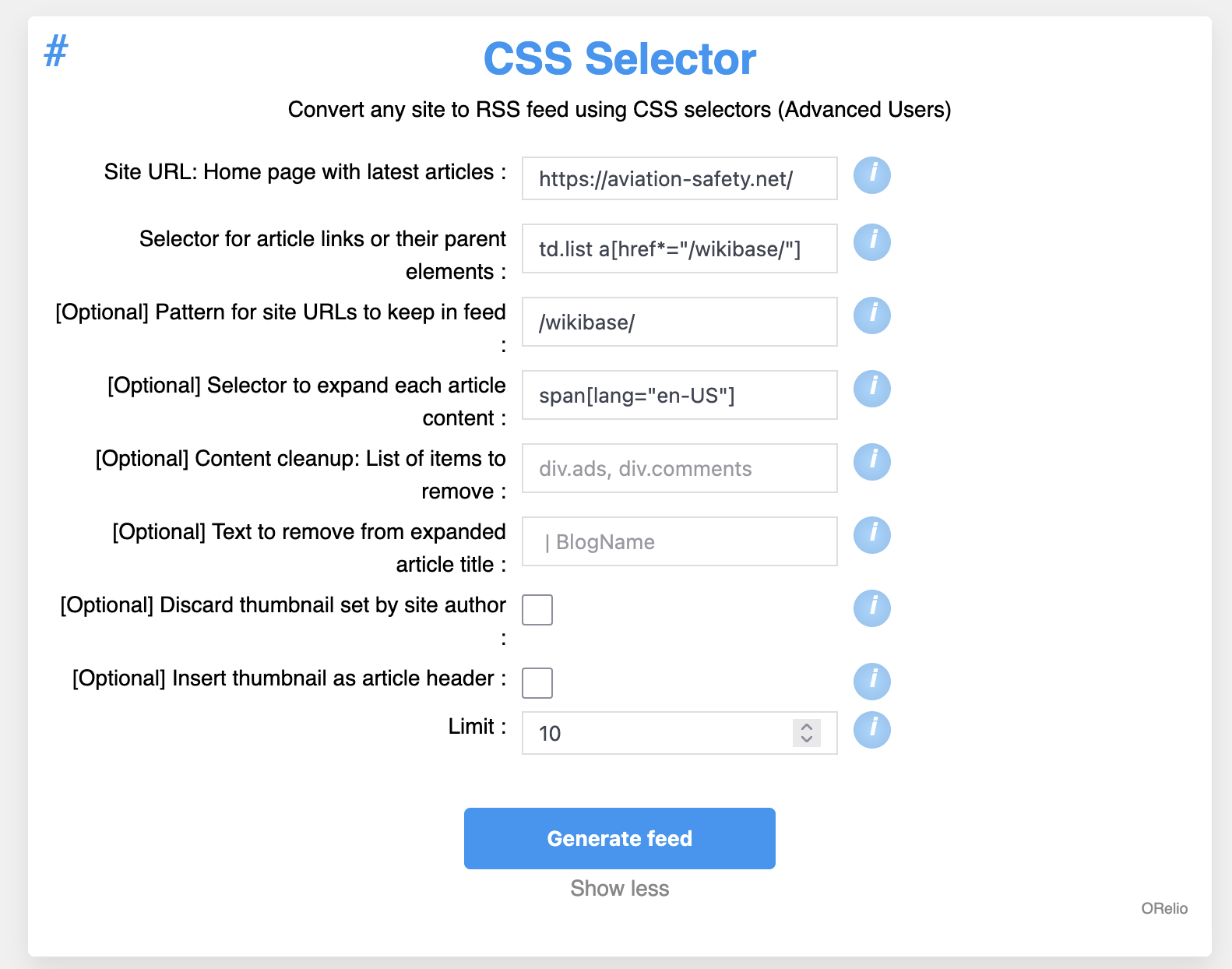
Enter the following settings.
Site URL
In Site URL: Home page with latest articles, enter:
https://aviation-safety.net/
Article selector
In Selector for article links or their parent elements, enter:
td.list a[href*="/wikibase/"]
This matches the links to individual Aviation Safety Network occurrence records.
URL filter
In Pattern for site URLs to keep in feed, enter:
/wikibase/
This prevents unrelated links from appearing in the feed.
Narrative selector
In Selector to expand each article’s content, enter:
span[lang="en-US"]
RSS-Bridge will open each occurrence page and extract the narrative contained in that element.
Remaining settings
Leave Content cleanup and Title cleanup empty initially.
Set Limit to:
10
This limits the number of occurrence pages retrieved whenever the feed is requested. A modest limit reduces the load placed on Aviation Safety Network.
Leave the thumbnail options unchecked unless images are wanted.
Generate the Atom feed
Submit the CSS Selector Bridge configuration. RSS-Bridge displays a preview page with several output formats.
Right-click Atom and select Copy Link or Copy Link Address. Left-clicking Atom may download the XML document instead.
The copied address is the subscription URL. It will resemble:
http://SERVER-IP:4242/?action=display&bridge=CssSelectorBridge&home_page=...
and end with:
&format=Atom
Add this complete URL to the RSS reader.
Do not subscribe to the downloaded XML file. A downloaded file is only a snapshot and will not update; the RSS-Bridge URL generates a fresh feed whenever the reader requests it.
Verify the feed
Test the URL from the Debian machine:
curl -L "FULL-ATOM-URL" | head
The result should begin with XML similar to:
<?xml version="1.0" encoding="UTF-8"?>
<feed xmlns="http://www.w3.org/2005/Atom">
The document should also contain <entry> elements. Each entry should have an Aviation Safety Network occurrence title, a link to its /wikibase/ page, and its narrative.
Network access
A feed reader on the local network can use the Debian server’s LAN address:
http://192.168.5.109:4242/...
Do not use localhost unless the feed reader runs on the same Debian machine. On another device, localhost refers to that device rather than to the RSS-Bridge server.
Cloud-based readers cannot reach a private address such as 192.168.5.109. To use a cloud reader, RSS-Bridge must be made available through a public hostname, preferably behind an HTTPS reverse proxy.
Routine management
View the container status:
cd /opt/rss-bridge
sudo docker compose ps
View recent logs:
sudo docker compose logs --tail=100 rss-bridge
Restart RSS-Bridge:
sudo docker compose restart
Update to the latest Docker Hub image:
sudo docker compose pull
sudo docker compose up -d
Stop RSS-Bridge:
sudo docker compose down
Start it again:
sudo docker compose up -d
The persistent configuration remains under:
/opt/rss-bridge/config